 Mr Viral
Skip to content
Image: Jon L. Jacobi
At a glanceExpert’s Rating
Pros
Fun, attractive design
Super affordable
Decent 400MBps reads
Stands out from the crowd
Cons
Limited to 256GB capacity
Already slow 150MBps writing drops to 80MBps after a few gigabytes
Our Verdict
If your younger kids need to back up or transport stored data, there’s no more enticing or entertaining way to do it than with SanDisk’s Crayola flash drive. But writes are slow, then painfully so with anything more than a couple of gigabytes.
Price When Reviewed
This value will show the geolocated pricing text for product undefined
Best Pricing Today
Best Prices Today: SanDisk Crayola flash drive
I’ve been accused of being a big kid, which makes me part of the target audience that the SanDisk Crayola flash drive is being blatantly marketed to. Hints of cynicism aside…
Making an SSD imitate a crayon is unique, fun, and definitely makes the drive stand out from the crowd — a possibly useful trait for anyone that I’ll explain later. But it’s a very slow writer (150MBps) from the get go, and drops to 80MBps after only a few gigabytes. Yikes.
Read on to learn more, then see our roundup of the best external drives for comparison.
What are the SanDisk Crayola’s features?
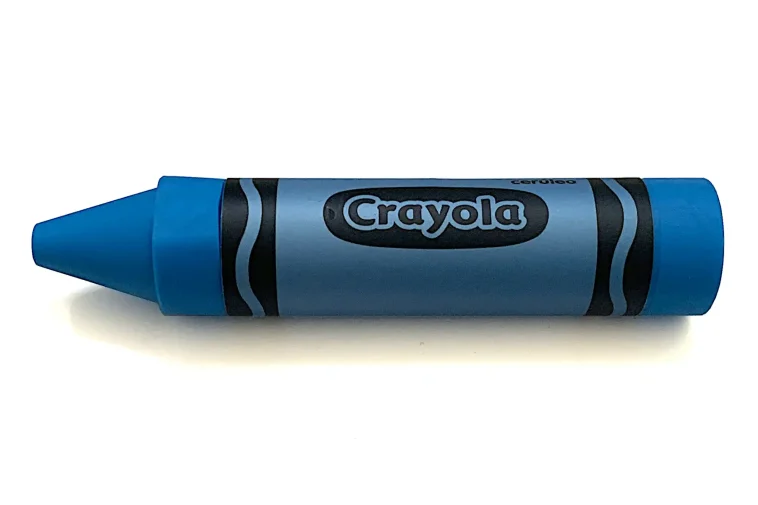
The Crayola is, as described (mostly) — a mildly fatter rendering of a crayon. Excuse me, Crayola crayon. It measures 3.22-inches long by 0.67-inches round at the cap, and 0.62-inches around the main cylinder, which is slightly flattened on the back (See below) for stability.
The cap covers a Type-C connector. While SanDisk doesn’t make any claims as to weather- or dust-proofing (there’s no IP rating), I’m guessing that with the cap on, the Crayola could stand up to most abuse. Note that the cap is not captive and and SanDisk warns that the drive is not for children under three years.
SanDisk Crayola Mango Tango with cap removed.
SanDisk sent me the Cerulean Blue, but the Crayola is also available in Electric Lime and Mango Tango (pink and orange). A Vivid Violet is in the works. All are distinctive and stand out from the crowd. Weight? A mere 10 grams, or 0.35 ounces.
Unusually for a thumb/flash drive the Crayola carries a 5-year limited warranty, though how exactly that’s limited isn’t explained via a TBW rating (terabytes that may be written).
Not to give anything away (I already have), but considering the Crayola’s slothful write speeds, there’s no way you’ll exceed the drive’s limits in anything remotely resembling the near future.
How much does the SanDisk Crayola cost?
Good news here: There’s no breaking the bank to entertain your youngster or young-at-heart soul! The 64GB version of the Crayola flash drive is $18, the 128GB is $23, and the 256GB version I tested is $33.
Those prices include a 3-month subscription to the Crayola Create & Play app.
How fast is the SanDisk Crayola?
Alas, those low prices reflect the Crayola’s performance. It reads fast enough at 400MBps, but write speed starts out slow at 150MBps and drops further to 80MBps once you exceed approximately 4GB of data.
For reference, a good-performing 5Gbps SSD will read and write at around 550Mbps. Even a fast 6Gbps SATA 3.5-inch hard drive manages 250MBps. Because of the low capacity and slow writes, I had to go off script for testing and with nothing similar to compare it to, didn’t create any charts.
Below are the CrystalDiskMark results at several data set sizes. Note that one MiB (mebibyte) is 220, or 1,048,576 bytes, where a megabyte (MB) is 106/1,000,000 bytes. GiB (Gibibyte) is 230, or 1,073,741,824 bytes, where a gigabyte (GB) is 109/ 1,000,000,000 bytes.
Performance was hunky-dory at 512MiB. If you can call 143MBps hunky-dory.
Given the low price and fun factor of the Crayola, we can live with this performance.
The 1GiB data set actually saw a slight bump in speed.
The 1GiB data set actually saw a slight bump in speed.
The Crayola managed its “top” write rate with the 4GiB data set.
150MBps is what we’d call a tolerable write speed, but it only lasts for a few gigabytes. Good enough for a school assignment, but not much more.
The 8GiB data set is where we started to see the write performance drop-off. That’s not all that much data when you’re dealing with video, etc. Note that we’ve seen slower drives off cache, such as the Addlink P50, though that drive writes at 1GBps for several hundred gigabytes before tanking.
This is not the write speed you want for any sort of serious use.
In terms of real-world testing, the Crayola took a hair over 11 minutes (662 seconds) to write our single 48GB file with FastCopy. That’s 10 times longer than any other thumb drive or portable drive we’ve tested over the last several years.
I didn’t feel the need to test/humiliate the Crayola further. Other than to see that it read back the same file in 127 seconds, that is. Suffice it to say that the Crayola absolutely is not the drive you want to write more than a few gigabytes at a time to.
SanDisk Crayola Electric Lime with the cap in place.
Of course, in the real world, that actually covers a whole lot of practical tasks. In fact, I’m going to use it as my Macrium Reflect Free boot disk (I re-image my test beds quite often) simply because it’s so easy to spot among the rest of my boring (looks-wise) collection.
I’ll only have to put up with the slow write once, I don’t mind any ribbing about the appearance, and its read speed is fine for a boot disk.
Should you buy the SanDisk Crayola?
As long as you’re aware of the severe write performance limitations, by all means, indulge. The Crayola is fun, and its distinct appearance makes it easy to spot in a crowd. As I’ve already pointed out, that could be handy in a write-once, read-many role.
Strictly for kids? Maybe not.
How we test
Drive tests currently utilize Windows 11 24H2, 64-bit running off of a PCIe 4.0 Samsung 990 Pro in an Asus Z890-Creator WiFi (PCIe 4.0/5.0) motherboard. The CPU is a Core Ultra i5 225 feeding/fed by two Crucial 64GB DDR5 5600MHz modules (128GB of memory total).
Both 20Gbps USB and Thunderbolt 5 are integrated into the motherboard and Intel CPU/GPU graphics are used. Internal PCIe 5.0 SSDs involved in testing are mounted in an Asus Hyper M.2 x16 Gen5 adapter card sitting in a PCIe 5.0 slot.
We run the CrystalDiskMark 8.04 (and 9), AS SSD 2, and ATTO 4 synthetic benchmarks (to keep article length down, we report only the former) to find the storage device’s potential performance. Then we run a series of 48GB transfer and 450GB write tests using Windows Explorer drag and drop to show what users will see during routine copy operations, as well as the far faster FastCopy run as administrator to show what’s possible.
A 25GBps two-SSD RAID 0 array on the aforementioned Asus Hyper M.2 x16 Gen5 is used as the second drive in our transfer tests. Formerly the 48GB tests were done with a RAM disk serving that purpose.
Each test is performed on a NTFS-formatted and newly TRIM’d drive so the results are optimal. Note that in normal use, as a drive fills up, performance may decrease due to less NAND for secondary caching, as well as other factors. This issue has abated somewhat with the current crop of SSDs utilizing more mature controllers and far faster, late-generation NAND.
Our testing MO constantly evolves and these results may not match those from previous articles. Only comparisons inside the article are 100% valid as those are gathered using the current hardware and MO.
Best Prices Today: SanDisk Crayola flash drive
Author: Jon L. Jacobi, Contributor, PCWorld
Jon Jacobi is a musician, former x86/6800 programmer, and long-time computer enthusiast. He writes reviews on TVs, SSDs, dash cams, remote access software, Bluetooth speakers, and sundry other consumer-tech hardware and software.





GIPHY App Key not set. Please check settings